インストール手順Install guide
画像の通りに進めるだけ。所要時間 約3分・一度きりの設定です(iPhone・iPad 対応)。Just follow the pictures. About 3 minutes, one time only (works on iPhone and iPad).
Orion ブラウザをインストールInstall the Orion browser
SiriusDeck は iPhone・iPad の Orion(Kagi 社のブラウザ)で動きます。未インストールなら先に入れてください。SiriusDeck runs in Orion (a browser by Kagi) on iPhone and iPad. Install it first if you don't have it.



Orion での操作Continue inside Orion
ここから先は Orion で操作してください。From here on, do everything in Orion.
zip をダウンロードDownload the zip
下のボタンで siriusdeck.zip を保存します。保存先は Orion フォルダ です。Use the button below to save siriusdeck.zip. It goes into the Orion folder.
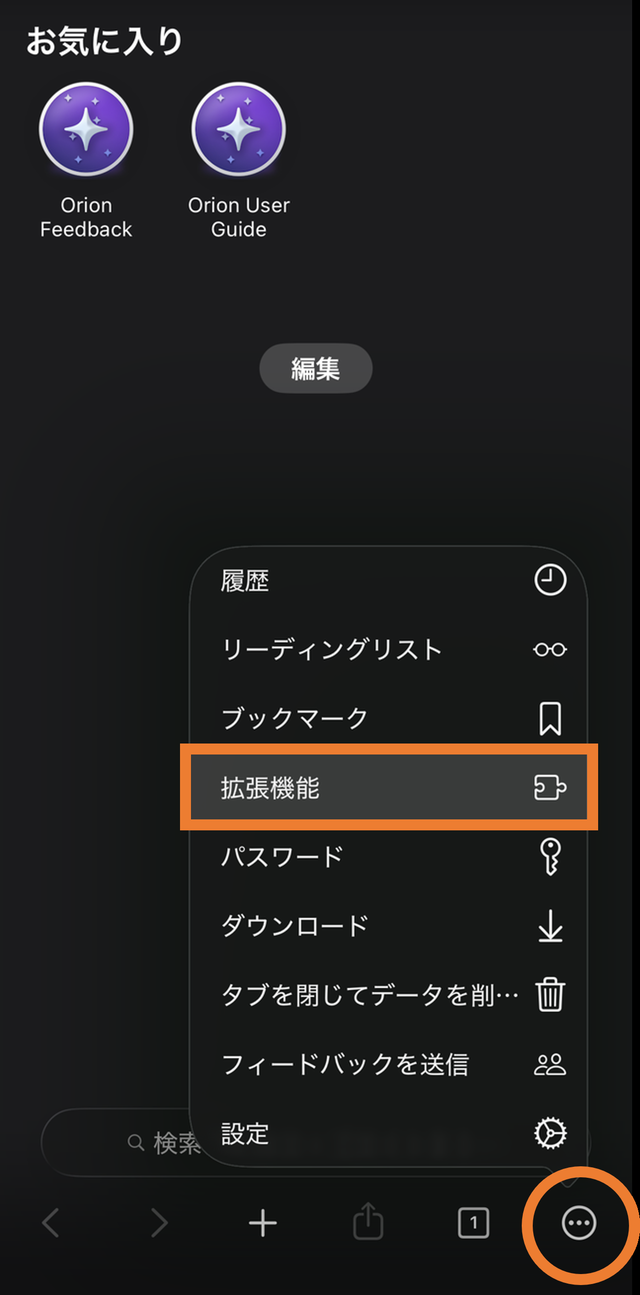
メニュー → 拡張機能Menu → Extensions
Orion 画面右下の (メニュー) から 拡張機能 を開きます。Tap (menu) at the bottom right of Orion, then open Extensions.
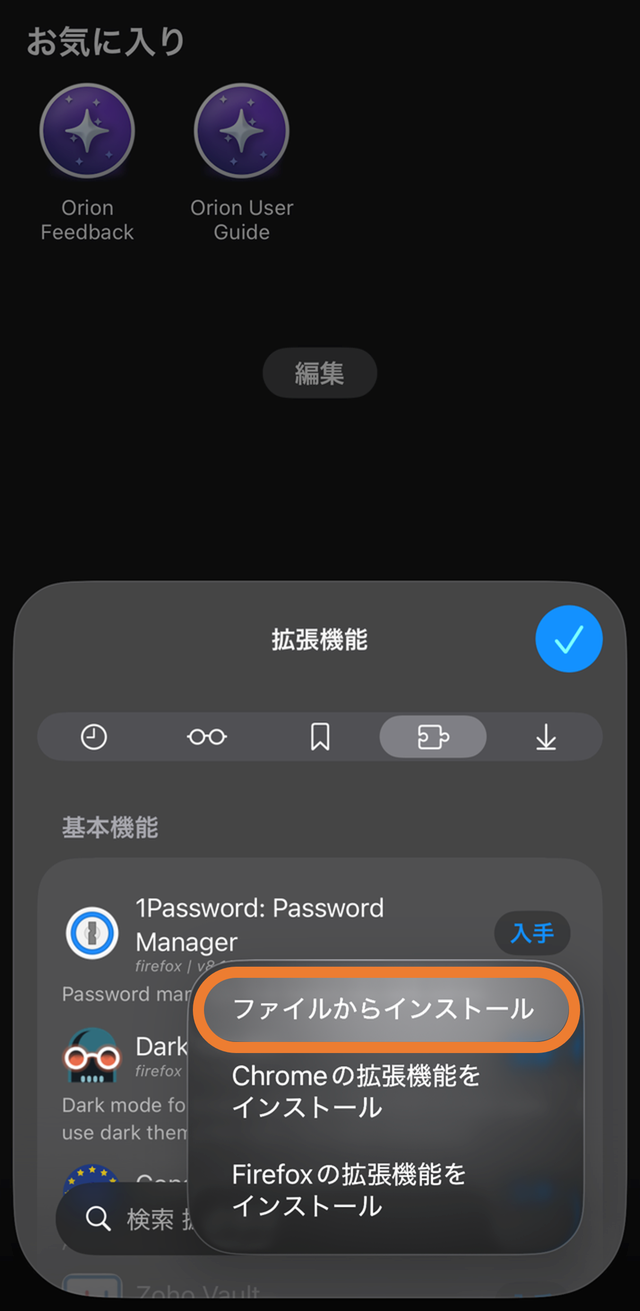
ファイルからインストールInstall from file
拡張機能パネルの 「ファイルからインストール」 を選びます。In the Extensions panel, choose "Install from file".
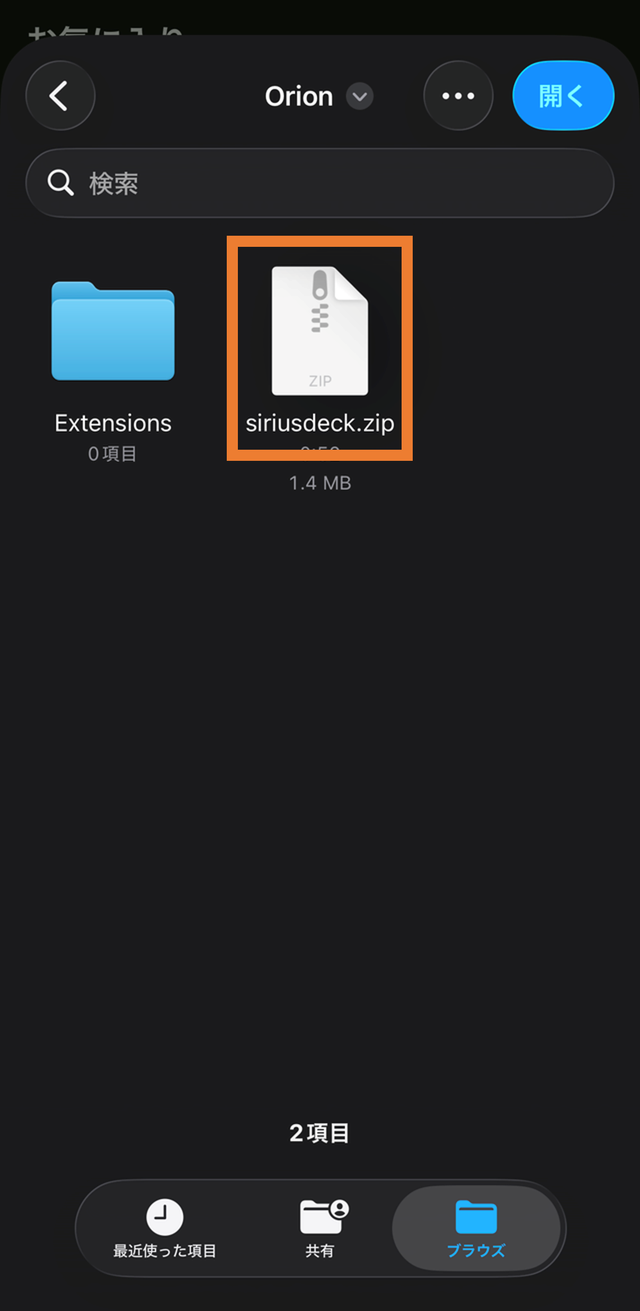
siriusdeck.zip を選ぶPick siriusdeck.zip
ファイル選択で Orion フォルダ にある siriusdeck.zip を選択します。In the file picker, select siriusdeck.zip from the Orion folder.
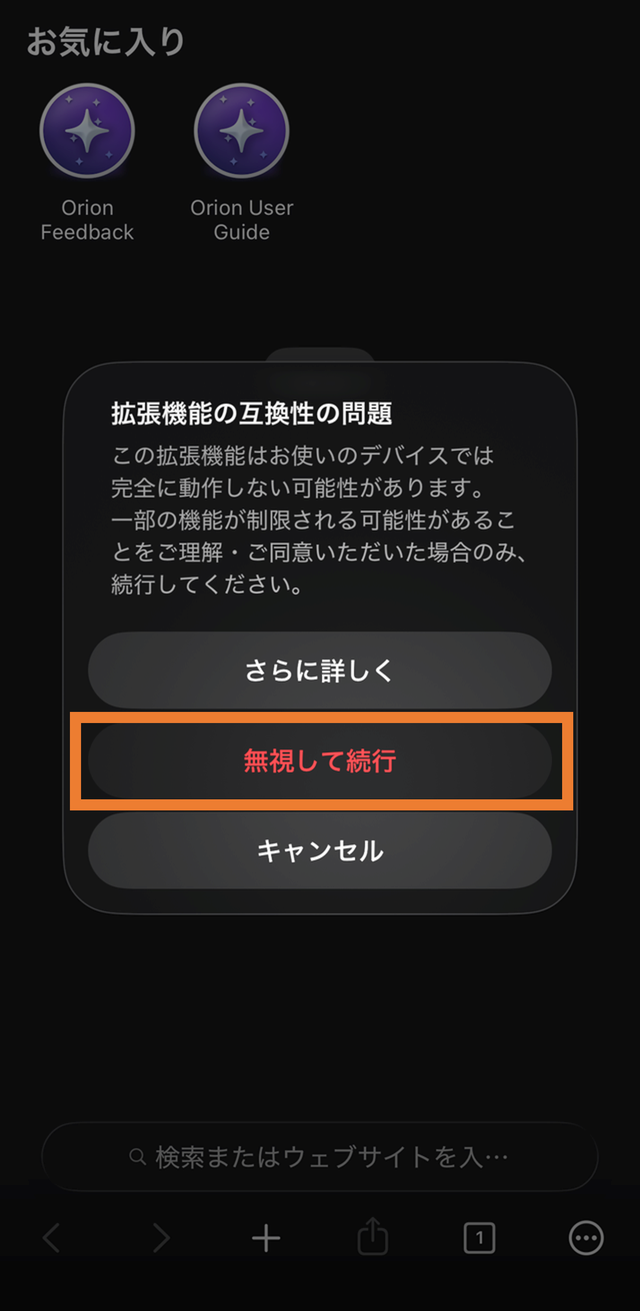
そのまま続行するContinue anyway
互換性に関する確認が出たら、無視して続行して問題ありません。If a compatibility warning appears, it is fine to ignore it and continue.
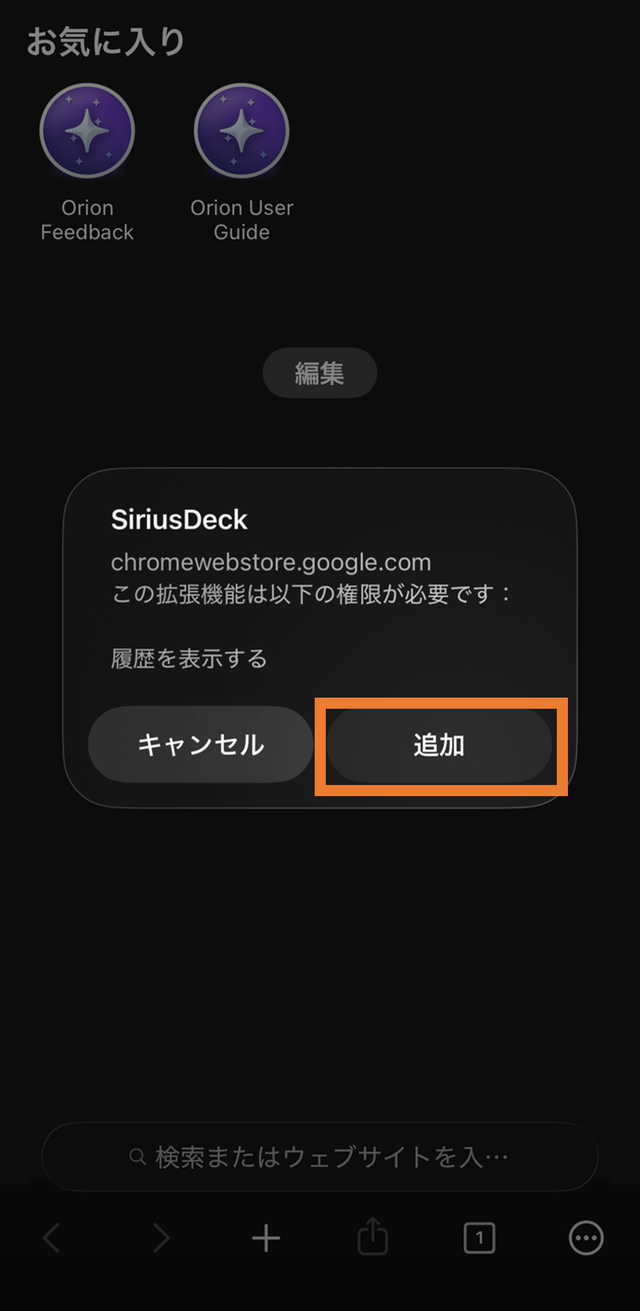
権限を追加するAdd the permissions
必要な権限の確認が出たら 「追加」 をタップします。When the permissions prompt appears, tap "Add".
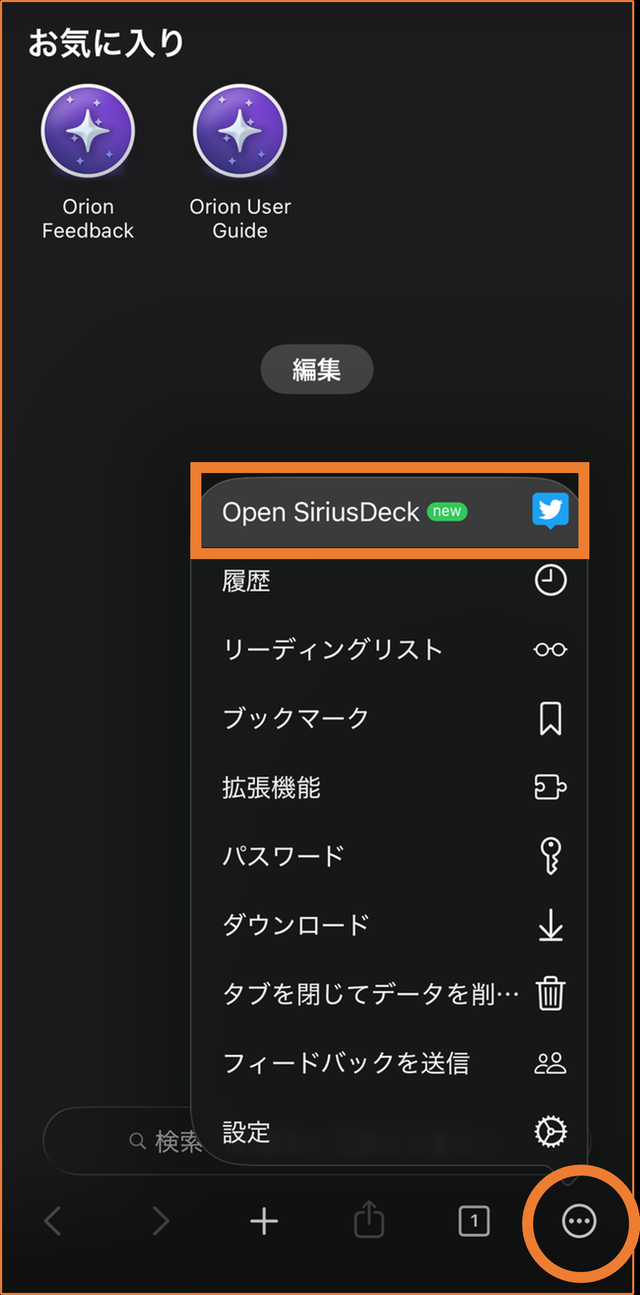
メニュー → Open SiriusDeckMenu → Open SiriusDeck
もう一度 (メニュー) を開き、Open SiriusDeck をタップして起動します。Open (menu) again and tap Open SiriusDeck to launch it.
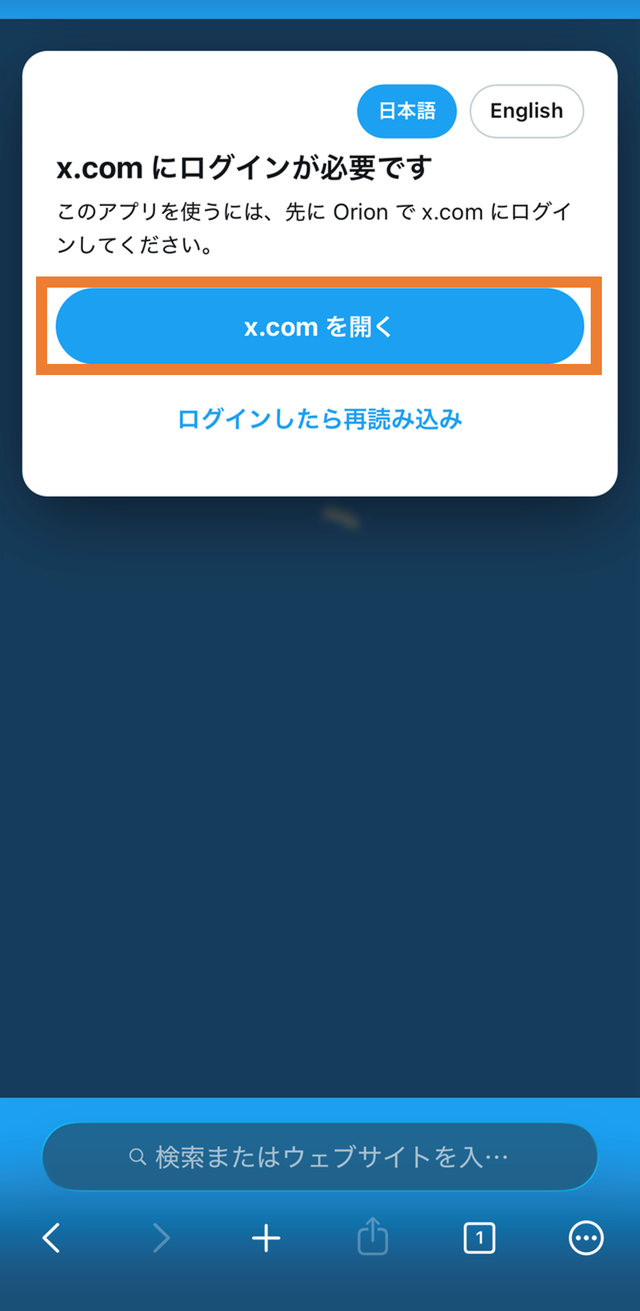
X にログインして完了Sign in to X — done
ログイン画面が出たら X(x.com)にログインします。When the login screen appears, sign in to X (x.com).
ホーム画面から 1 タップで開く(任意)One-tap launch from the Home Screen (optional)
「ショートカット」アプリに下を追加し、共有メニュー →「ホーム画面に追加」でアイコンを作れます。Add the shortcut below to the Shortcuts app, then use Share → "Add to Home Screen" to create an icon.
起動ショートカットを追加Add the launch shortcutWindows / Mac の Chrome で使うUse it in Chrome on Windows / Mac
同じアカウント・同じライセンスで、PC の Chrome でも使えます(Chrome 版は x.com 上で動作します)。Chrome ウェブストアには置いていないため、下記の手順で読み込んでください。Works in desktop Chrome with the same account and license (the Chrome build runs on x.com). It isn't on the Chrome Web Store, so load it as follows.
Chrome 版をダウンロード(.zip)Download for Chrome (.zip)- ダウンロードした
siriusdeck-chrome.zipをフォルダに展開します(zip のままでは読み込めません)。Extract the downloadedsiriusdeck-chrome.zipinto a folder (Chrome can't load the zip itself). - Chrome で
chrome://extensionsを開き、右上の「デベロッパー モード」をオンにします。Openchrome://extensionsand turn on Developer mode (top right). - 「パッケージ化されていない拡張機能を読み込む」で、展開したフォルダを選びます。Click Load unpacked and pick the extracted folder.
- x.com にログインした状態で
https://x.com/i/tweetdeckを開く(またはツールバーの SiriusDeck アイコンをクリック)と起動します。While logged in to x.com, openhttps://x.com/i/tweetdeck(or click the SiriusDeck toolbar icon).
更新方法:新しい zip を同じフォルダに展開し直し、chrome://extensions で「更新」を押します。修正の多くはサーバ配信のため、再インストール不要で自動反映されます。To update: re-extract a new zip into the same folder and press "Update" on chrome://extensions. Most fixes are delivered from the server and apply automatically without reinstalling.
うまくいかないときIf something goes wrong
読み込めない・反映されないIt won't load, or changes don't apply
Orion を一度完全に終了(アプリスイッチャーで上にスワイプ)してから再起動し、もう一度お試しください。Quit Orion completely (swipe it up in the app switcher), reopen it and try again.
zip が見つからないI can't find the zip
ダウンロードした siriusdeck.zip は Orion フォルダにあります。手順6のファイル選択で「ブラウズ」から辿ってください。The downloaded siriusdeck.zip is in the Orion folder. In step 6, use "Browse" in the file picker to reach it.
ずっと青い画面/ログイン画面になるStuck on a blue screen or the login page
先に Orion で x.com にログインしてください。ログインしていないと読み込みが完了しません。Sign in to x.com in Orion first — loading cannot finish while you are signed out.